Full Giscus configuration support
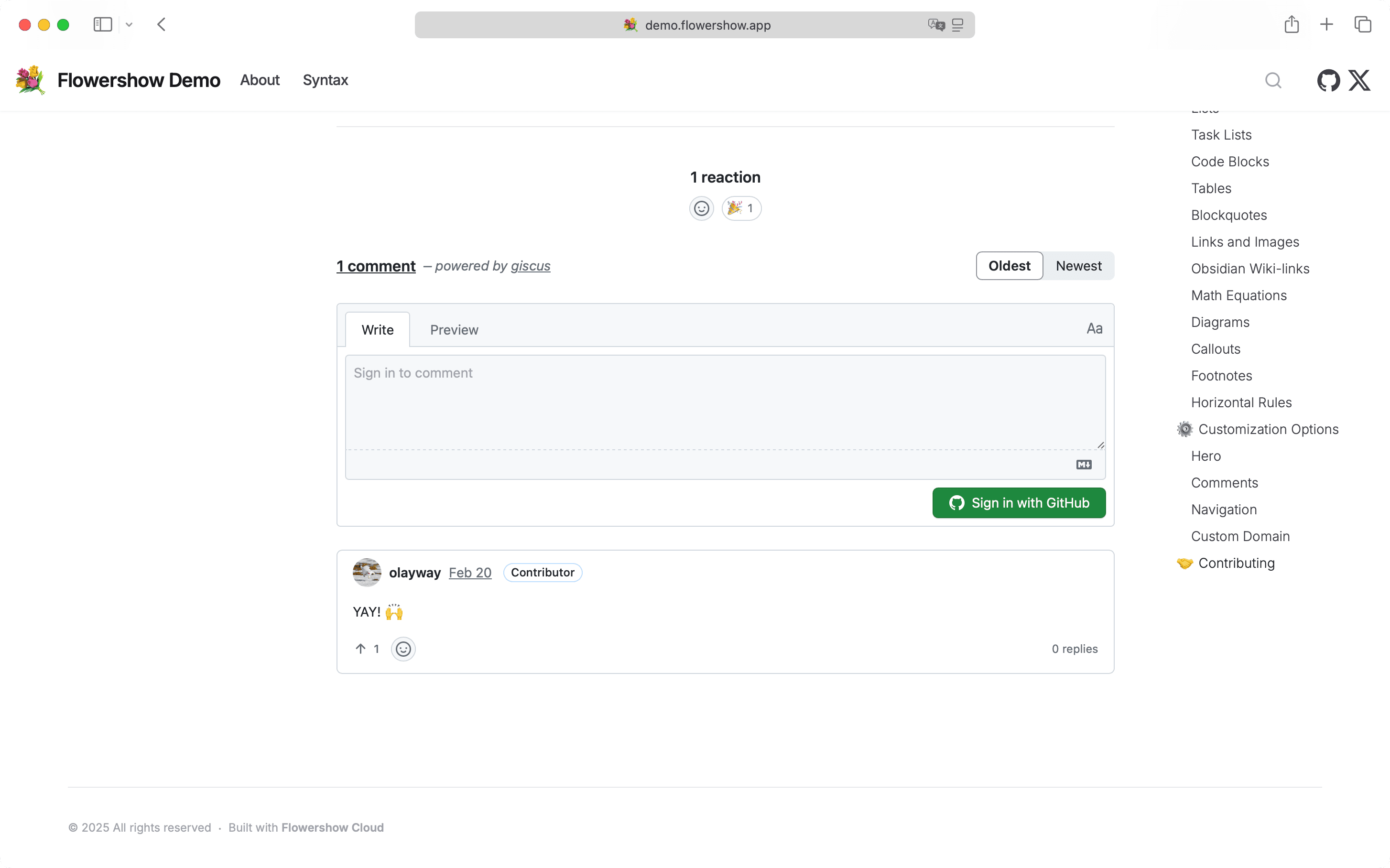
Flowershow now supports customizing Giscus comments with themes, languages, reactions, and other settings.
What's New?
You can now configure all Giscus parameters, including:
- Theme customization
- Language preferences
- Reaction settings
- Comment input position
- Category configuration
- and more…
Configuration
If you want to use Giscus with the same repository as your site, the easiest way to set it up is through the Flowershow site dashboard:
- Enable comments in your site settings
- Configure two essential parameters:
- Repository ID (starts with 'R_')
- Category ID (starts with 'DIC_')
With this minimal setup, a comment section will appear on your site. Flowershow will use your site's GitHub repository and the default "Announcements" and set some default values for other Giscus options, like the position of the comment box or the theme.
However, if you need more control over the comment section, you can now override any Giscus settings using your site's config.json. This gives you access to the full range of Giscus options:
{
  "giscus": {
    "repo": "username/different-repo",
    "repoId": "R_xxx",
    "category": "Discussions",
    "categoryId": "DIC_xxx",
    "theme": "transparent_dark",
    "lang": "en",
    "mapping": "title",
    "strict": "0",
    "reactionsEnabled": "1",
    "inputPosition": "top"
  }
}
This advanced configuration is particularly useful when:
- Your site repository is private but you want to use a public one for comments
- You want to customize the appearance or behavior of the comment section
- You manage multiple sites and want to centralize comments in a single repo
Any Giscus settings in your config.json will override the defaults set by Flowershow and the values configured in the site dashboard.
For a detailed guide on setting up comments, including step-by-step instructions and troubleshooting tips, check out our how-to guide.
Let us know what you'd like to see next!