Publish Your Obsidian Vault with Enveloppe + Flowershow
Learn how to set up the Enveloppe plugin in Obsidian to publish your vault with Flowershow
Many of you have been asking about how to publish your Obsidian vault with Flowershow. One option is, of course, the dedicated Flowershow Obsidian plugin.
Another option we want to highlight today is the excellent Enveloppe plugin. This works with Flowershow because Flowershow integrates with Github as the intermediate storage layer. Thus, you can use Enveloppe to push your content to Github and then use Flowershow to publish your site live.
This guide will walk you step by step through the setup.
Steps
1. Replace image (and avatar) frontmatter fields with wikilinks
Enveloppe only uploads attachments that are embedded or linked using Obsidian wiki link format (e.g., ![[image.png]]) (and CommonMark links). It doesn't just upload everything it finds in your vault.
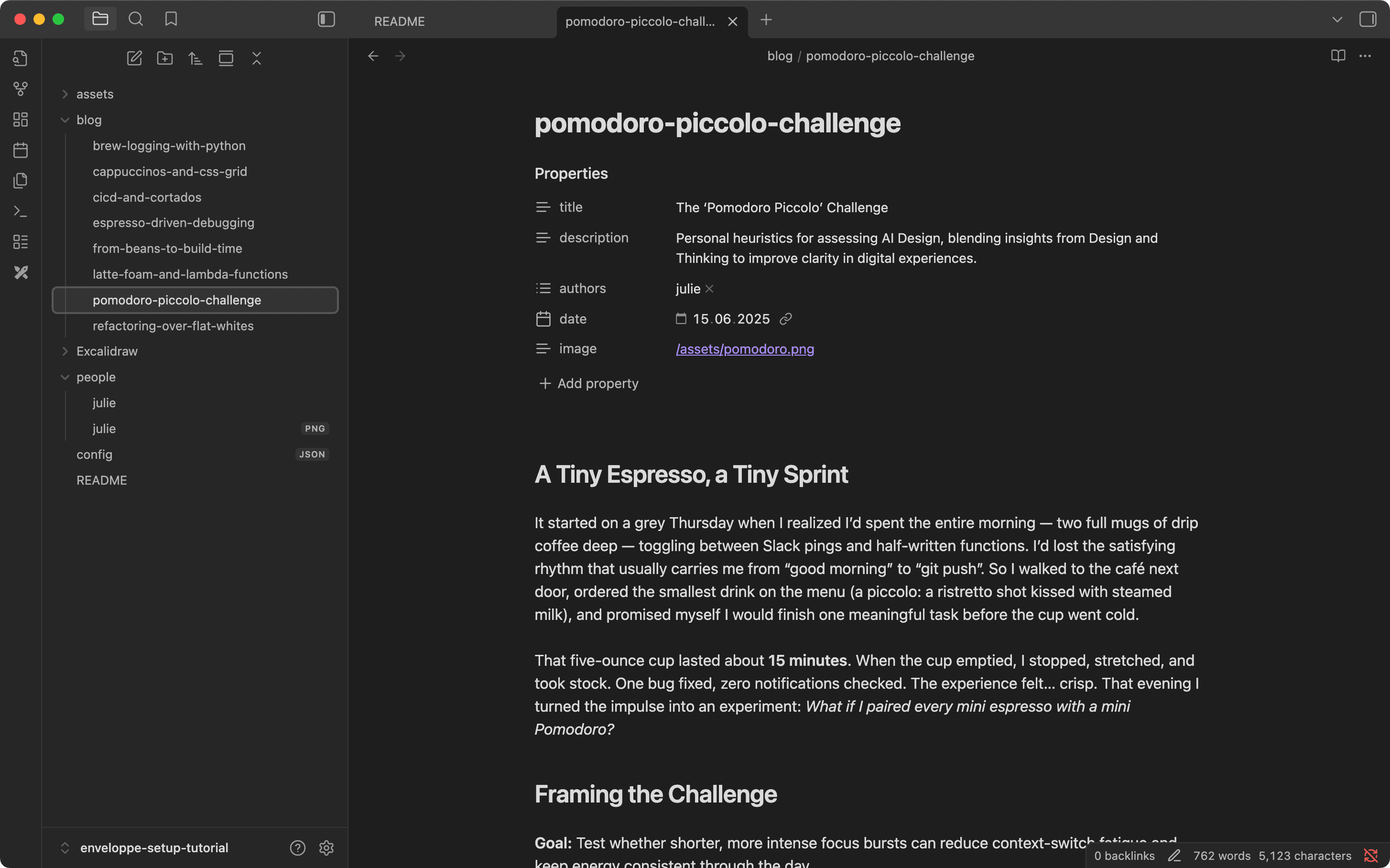
This means if you’re using image or avatar in your frontmatter, they must be wiki links instead of just a string.
✅ Good:
image: "[[my-image.png]]"
❌ Bad:
image: /assets/my-image.png
We’ve just added support for wiki links in these frontmatter fields, so now you can use them directly.
Obsidian recognizes and displays these links, so you can click them to quickly open the file. It’s also much less error-prone than typing paths manually.
After this, your image (and avatar) fields should display like this:
Bulk-convert existing frontmatter
If you have many files to update, Obsidian unfortunately doesn’t support global search-and-replace. You’ll need to use a different text editor (like VS Code or Atom).
Regex find:
image:\s*([^\s]+)
Regex replace:
image: "[[$1]]"
2. Install the Enveloppe Obsidian plugin
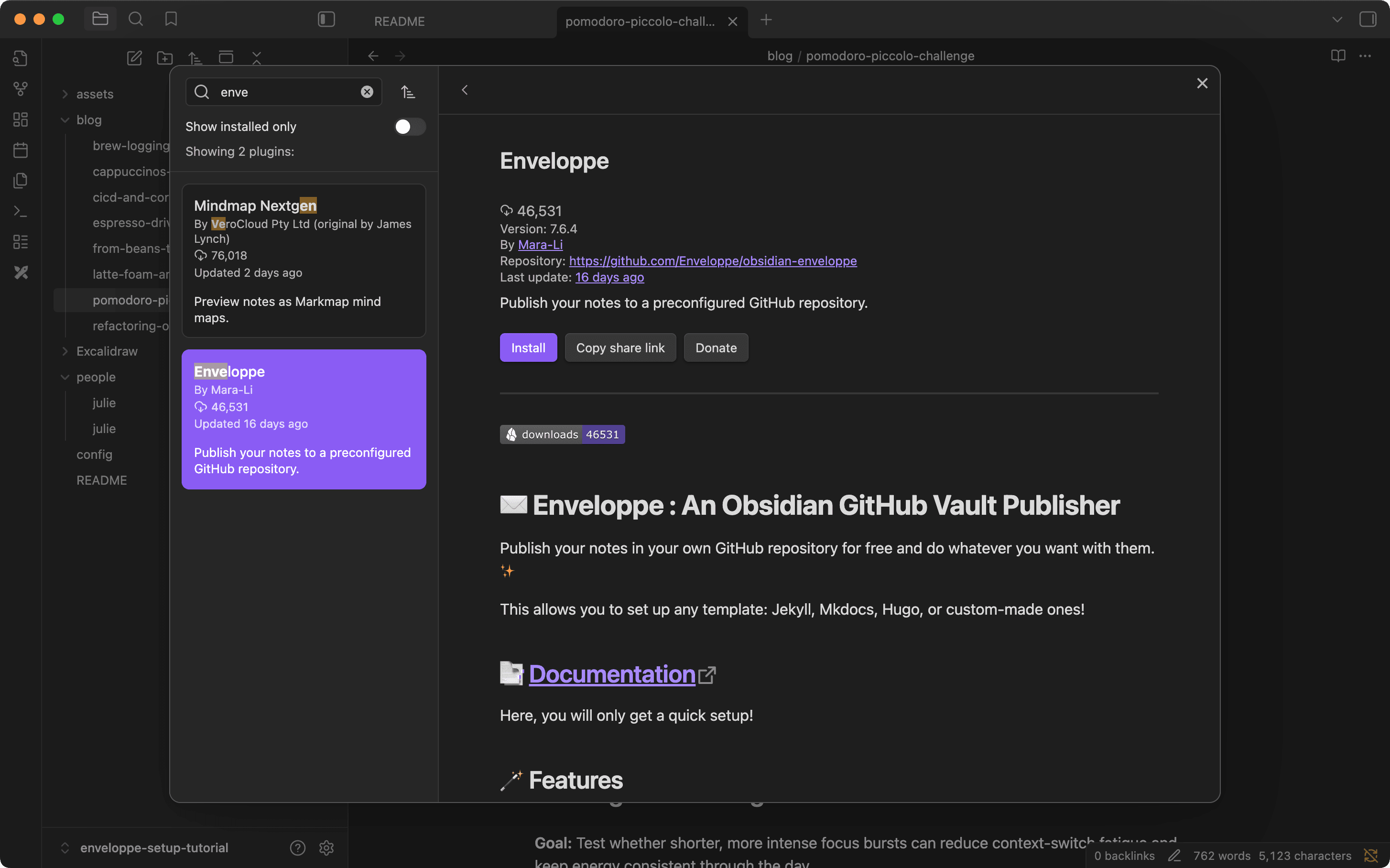
Open the Community Plugins tab in Obsidian and search for Enveloppe:
3. Connect your GitHub repository
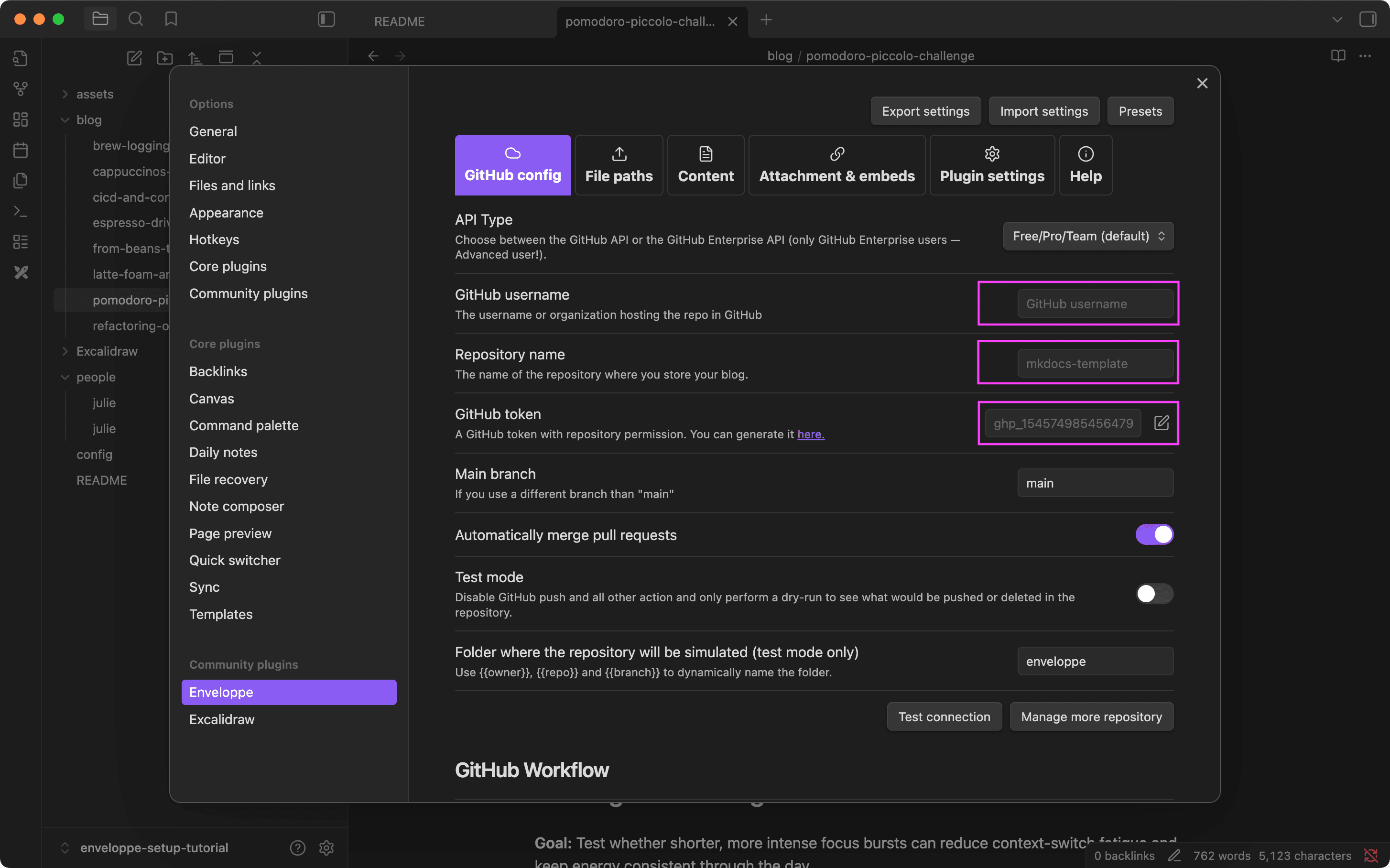
Once installed, go to the plugin settings. You’ll need to provide:
- GitHub username
- GitHub repository name
- GitHub Personal Access Token
You can then click Test connection to confirm it’s working.
4. Import our preset configuration
To make setup easier, we’ve prepared a configuration preset. Click Import settings in the plugin’s settings, and paste this JSON:
{
  "github": {
    "branch": "main",
    "automaticallyMergePR": true,
    "dryRun": {
      "enable": false,
      "folderName": "enveloppe"
    },
    "api": {
      "tiersForApi": "Github Free/Pro/Team (default)",
      "hostname": ""
    },
    "workflow": {
      "commitMessage": "[Enveloppe] Merge",
      "name": ""
    },
    "verifiedRepo": true
  },
  "upload": {
    "behavior": "obsidian",
    "defaultName": "",
    "rootFolder": "",
    "yamlFolderKey": "",
    "frontmatterTitle": {
      "enable": false,
      "key": "title"
    },
    "replaceTitle": [],
    "replacePath": [],
    "autoclean": {
      "includeAttachments": true,
      "enable": true,
      "excluded": []
    },
    "folderNote": {
      "enable": false,
      "rename": "index.md",
      "addTitle": {
        "enable": false,
        "key": "title"
      }
    },
    "metadataExtractorPath": ""
  },
  "conversion": {
    "hardbreak": false,
    "dataview": true,
    "censorText": [],
    "tags": {
      "inline": false,
      "exclude": [],
      "fields": []
    },
    "links": {
      "internal": true,
      "unshared": true,
      "wiki": true,
      "slugify": "disable",
      "unlink": false,
      "relativePath": false,
      "textPrefix": "/"
    }
  },
  "embed": {
    "attachments": true,
    "overrideAttachments": [],
    "keySendFile": [
      "image",
      "avatar",
      "config",
      "css"
    ],
    "notes": false,
    "folder": "assets",
    "convertEmbedToLinks": "keep",
    "charConvert": "->",
    "unHandledObsidianExt": [
      "json",
      "css"
    ],
    "sendSimpleLinks": true,
    "forcePush": true,
    "useObsidianFolder": true
  },
  "plugin": {
    "shareKey": "share",
    "excludedFolder": [],
    "copyLink": {
      "enable": false,
      "links": "",
      "removePart": [],
      "addCmd": false,
      "transform": {
        "toUri": true,
        "slugify": "lower",
        "applyRegex": []
      }
    },
    "setFrontmatterKey": "Set",
    "shareAll": {
      "enable": true,
      "excludedFileName": "DRAFT"
    }
  }
}
5. Push your content
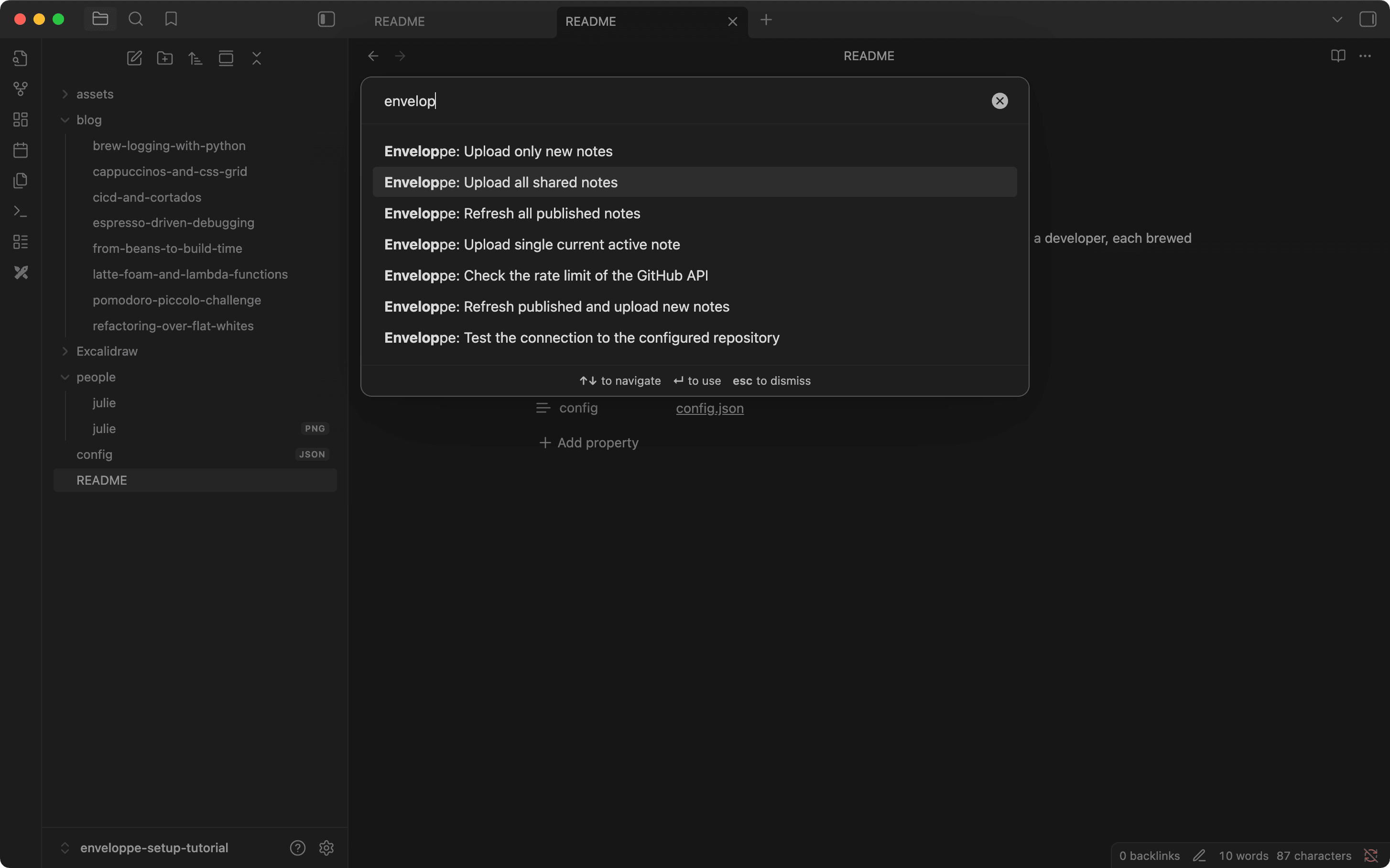
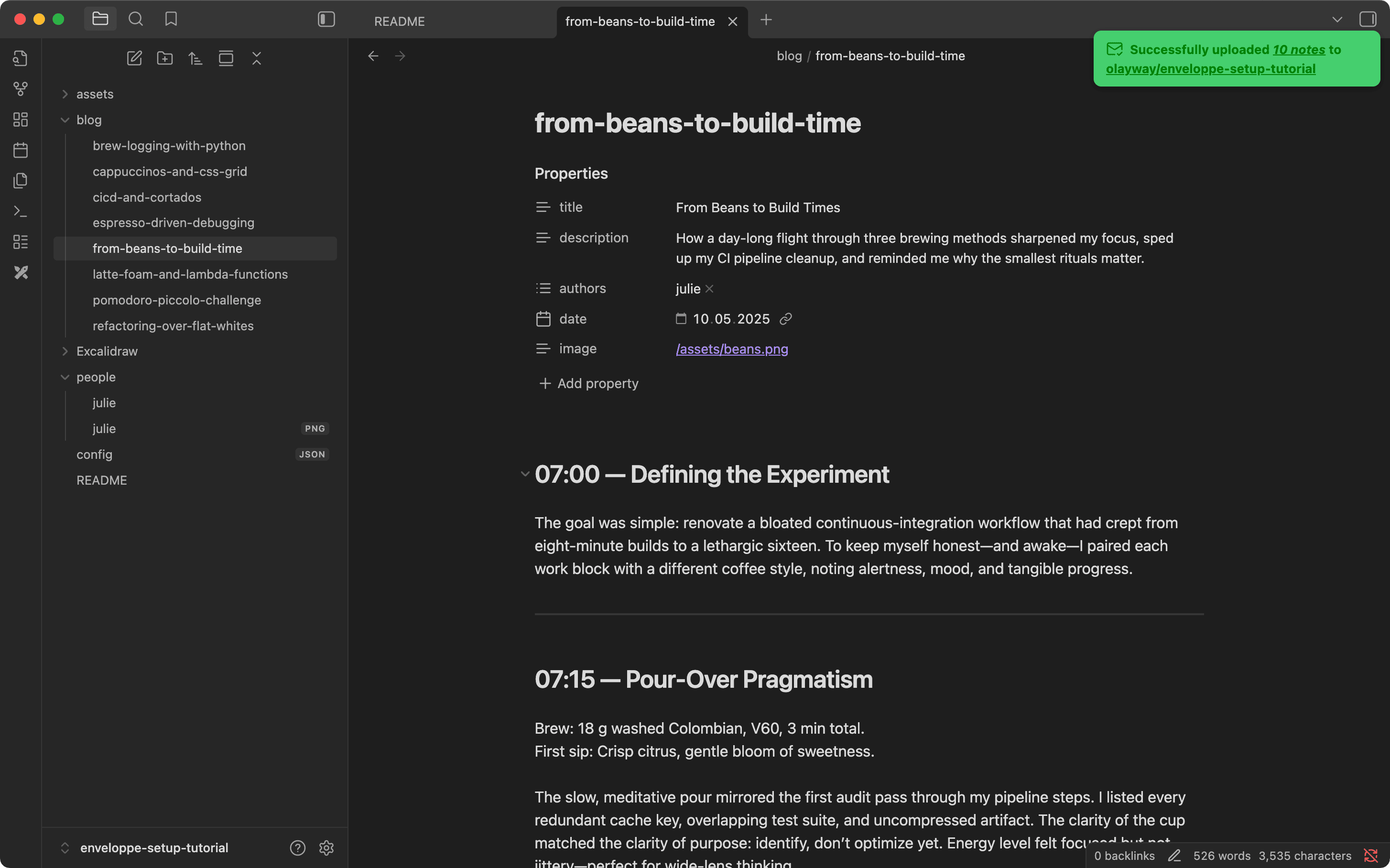
When you’re ready, run the command: "Enveloppe: Upload all shared notes" This will push your vault (and linked assets) to GitHub. From there, Flowershow can publish it.
6. Connect your GitHub repo to Flowershow
Now that your vault is uploaded to GitHub, you can connect it to Flowershow and publish it.
- Go to Flowershow Cloud.
- Log in with your GitHub account.
- Click Create Site.
- Select the repository you just pushed with Enveloppe.
7. (Optional) Upload config.json
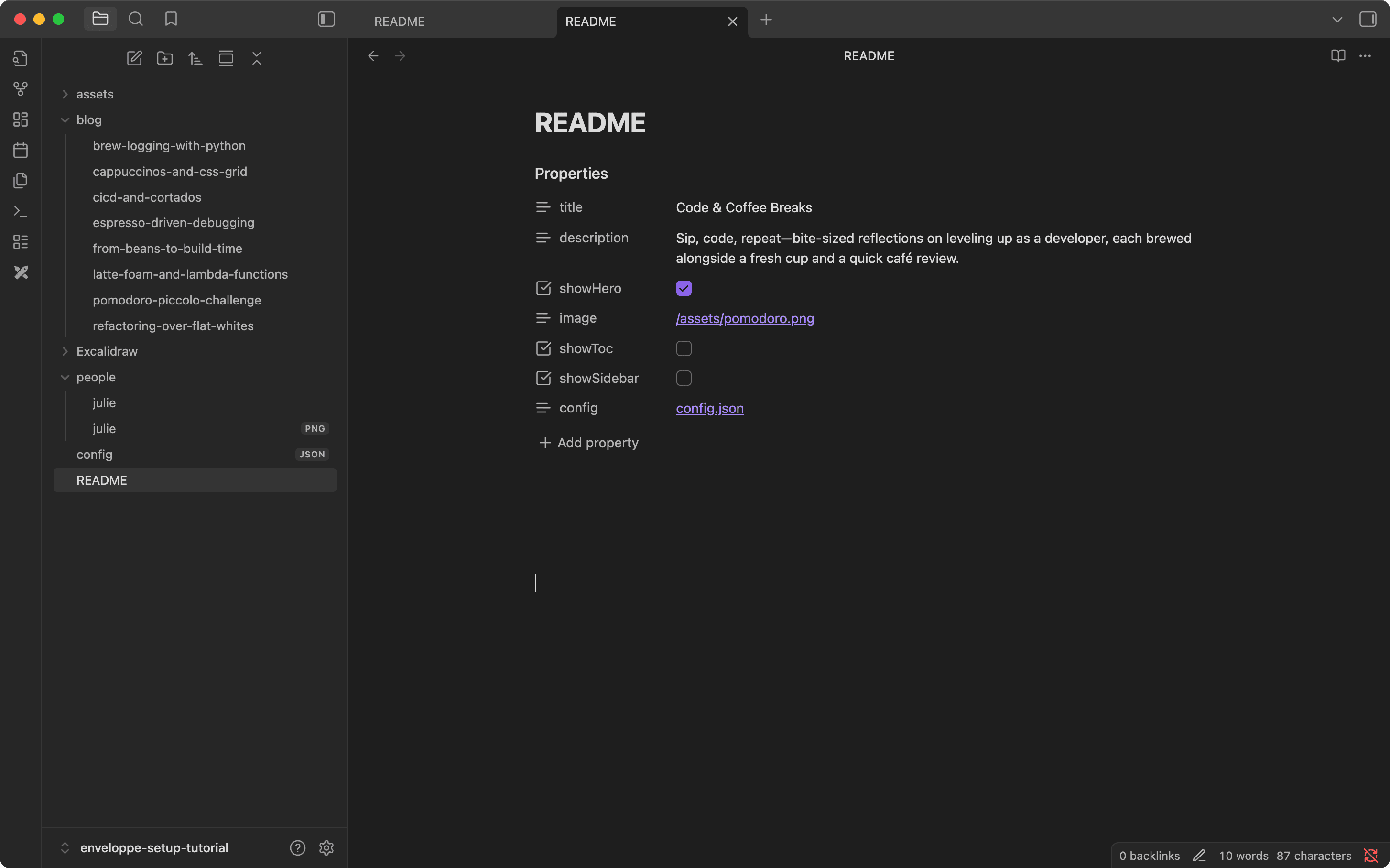
Enveloppe’s behavior related to attachments uploading also applies to your config.json. If you want to edit it locally and have it uploaded with the rest of your vault, you must link to it somewhere. Otherwise, it will be ignored.
Since config.json rarely changes, the simplest option is to keep it directly in your GitHub repo and edit it there. But if you do want it to sync with the rest of your vault, you can create a dummy link in, for example, your README.md:
title: Welcome to my blog!
config: "[[config.json]]"
✨ Bonus features of using Enveloppe
Using Enveloppe also brings some extras:
🖼️ Excalidraw support out of the box
- Your Excalidraw drawings are automatically converted to SVG.
- All embed links are updated for you.
- You don’t need to clutter your vault with extra
.svgfiles — Enveloppe does this on the fly and only in the repo.
📊 Dataview query resolution
- Dataview queries are evaluated and saved as plain Markdown in the repo.
- This means your published site contains the fully rendered tables/lists, without depending on Obsidian plugins.
Done!
That’s it — you’ve connected Obsidian, GitHub, Enveloppe, and Flowershow. Your vault should now be live 🎉
Try updating a note in your vault, running the upload again, and watch your site update within minutes.
