Custom Fonts
Use Google Fonts or your own font files on your site
This guide shows two ways to change your site's fonts:
- Google Fonts: import a font from Google's servers with one line of CSS.
- Your own font files: publish brand fonts (
.woff2) with your site and load them fromcustom.css.
Either way, you then apply the font by setting two CSS variables: --font-heading and --font-body.
Here's the default Flowershow theme that we're going to transform:

What you'll need
- A Flowershow site
- A
custom.cssfile in your site's root directory - Basic knowledge of CSS
Option A: Google Fonts
Step 1: Choose your fonts
- Visit Google Fonts.
- Pick the fonts you want, for example "Playfair Display" for headings and "Source Sans 3" for body text, and click "Get font" on each.
- Click "View selected families" in the top right, then "Get embed code".
- In the "Web" tab, choose "@import" and copy the
@importline.
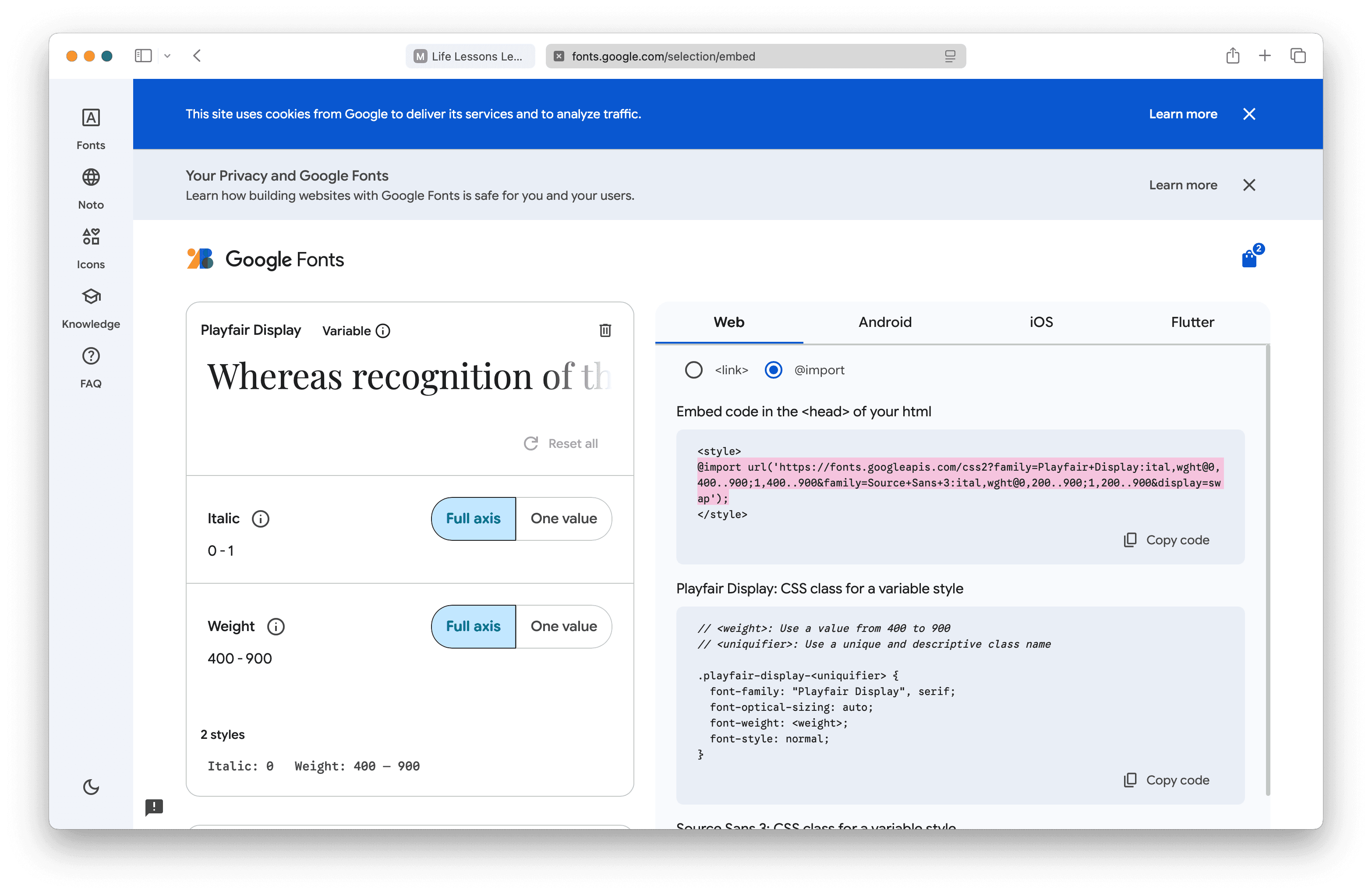
Flowershow uses Tailwind Typography to style your content, and it uses several font weights and italics. Select the full weight axis (and italics) when importing, so headings, bold text and emphasis keep their intended look. Only import specific weights if you want to limit the weights on purpose.
Step 2: Import the fonts
Paste the @import line at the very top of custom.css:
@import url('https://fonts.googleapis.com/css2?family=Playfair+Display:ital,wght@0,400..900;1,400..900&family=Source+Sans+3:ital,wght@0,200..900;1,200..900&display=swap');
@import must come firstBrowsers ignore an @import that comes after any other CSS rule, without any error. Only comments may come before it. If you import several stylesheets, put all the @import lines together at the top.
Don't add layer(...) to the import. Rules inside a cascade layer lose to the default theme.
Step 3: Apply the fonts
Below the import, set the font variables:
:root {
  --font-heading: 'Playfair Display', Georgia, serif;
  --font-body: 'Source Sans 3', -apple-system, BlinkMacSystemFont, 'Segoe UI', sans-serif;
}
The fonts after the first one are fallbacks. The browser uses them while your font loads, or if it can't load.
In the default theme, the two variables cover more than headings and paragraphs:
--font-headingis the font for headings and the site's interface: the navigation bar, sidebar, table of contents, page header (title, date, authors, description), footer, tags and lists of pages.--font-bodyis the font for running text: paragraphs, lists and the rest of your page content.
So a display font such as Playfair Display in --font-heading also shows up in your navigation and sidebar. To change only the headings, leave :root alone and set the variable on the heading elements instead:
h1, h2, h3, h4, h5, h6 {
  --font-heading: 'Playfair Display', Georgia, serif;
}
This works however the theme styles headings, because every theme rule that uses var(--font-heading) on a heading now gets your font.
Some themes use extra font variables of their own for parts of the interface, so setting these two may not change everything. Check the theme's CSS for other --font-… variables and set them in :root too.
Option B: Your own font files
Use this for brand fonts, or any font you're licensed to self-host. You publish the font files with your site, like images.
custom.cssSome font tools export fonts as long base64 data: URLs inside @font-face rules. Don't use those. Every page needs custom.css before it can show anything, so a 190KB custom.css makes the first visit to your site slower to load. Separate font files are downloaded only when needed and cached.
Step 1: Add the font files
Create a fonts folder in your site's root directory, next to custom.css, and put your font files in it. Use .woff2 where you can: it's the smallest format and every modern browser supports it.
custom.css
fonts/
  Brand-Regular.woff2
  Brand-Bold.woff2
  Brand-Italic.woff2
Obsidian's file explorer hides .woff2 files unless Settings → Files and links → Detect all file extensions is on. The folder may look empty in Obsidian, but the Flowershow plugin still publishes the fonts in it.
Publish the folder with the rest of your site. If you use contentInclude to publish only some folders, add fonts to the list.
You can self-host fonts from Google Fonts too. Download the .woff2 files, put them in fonts/, and write the @font-face rules below yourself instead of using @import.
Step 2: Declare the fonts in custom.css
Add one @font-face rule per file, then set the font variables:
@font-face {
  font-family: 'Brand';
  src: url('/fonts/Brand-Regular.woff2') format('woff2');
  font-weight: 400;
  font-style: normal;
  font-display: swap;
}

@font-face {
  font-family: 'Brand';
  src: url('/fonts/Brand-Bold.woff2') format('woff2');
  font-weight: 700;
  font-style: normal;
  font-display: swap;
}

@font-face {
  font-family: 'Brand';
  src: url('/fonts/Brand-Italic.woff2') format('woff2');
  font-weight: 400;
  font-style: italic;
  font-display: swap;
}

:root {
  --font-heading: 'Brand', Georgia, serif;
  --font-body: 'Brand', -apple-system, BlinkMacSystemFont, 'Segoe UI', sans-serif;
}
Use the same font-family name in every @font-face rule and in the variables. The font-weight and font-style values tell the browser which file to use for bold and italic text.
Your pages load custom.css from your site root (/custom.css), so font paths are looked up from there, whatever page the visitor is on, including pages in subfolders such as /blog/my-post. url('/fonts/Brand-Regular.woff2') and url('fonts/Brand-Regular.woff2') both work, on Flowershow subdomains and custom domains. We recommend starting paths with / because it's clearer.
Self-hosted fonts haven't been tested on password-protected sites yet. If your font doesn't load there, use a Google Font instead, or let us know.
With custom head code you can ask the browser to fetch your main font earlier, which reduces the flash of fallback text. The easiest way is to paste this line into Custom Head Code in your site's dashboard Settings:
<link rel="preload" href="/fonts/Brand-Regular.woff2" as="font" type="font/woff2" crossorigin>
If you set it in config.json instead, the value is a JSON string, so the quotes inside it need a backslash:
"head": "<link rel=\"preload\" href=\"/fonts/Brand-Regular.woff2\" as=\"font\" type=\"font/woff2\" crossorigin>"
Styling specific elements
The variables cover most cases. To use a font in one place only, target that element in custom.css:
.site-navbar {
  font-family: 'Playfair Display', serif;
}
custom.css loads after the default theme, so a rule wins when its selector is as specific as the theme's, or more. If the theme's selector is more specific, your rule loses. Use your browser's developer tools to check which rule is applied, and make your selector more specific rather than adding !important. Prefer element names, IDs and the theme classes over Tailwind utility classes such as .font-semibold, which can change between releases.
Best practices
- Use two or three fonts at most. Each one adds downloads and visual noise.
- Choose a readable body font.
- Load only what you use. Every weight and style is another file to download.
- Always include fallback fonts in the variables.
Troubleshooting
If your font isn't showing:
- Open your browser's developer tools, go to the Network tab, filter by "Font" and reload the page.
- A 404 for your font file usually means the path is missing the leading
/, the file name doesn't match (names are case-sensitive), or thefontsfolder wasn't published. - No request at all usually means the
@importisn't at the very top ofcustom.css, or thefont-familyname in your variables doesn't match the name in@font-faceor on Google Fonts.
- A 404 for your font file usually means the path is missing the leading
- Check the font name is spelled exactly the same everywhere, including spaces and capital letters.
- Hard-refresh the page:
Cmd+Shift+R(Mac) orCtrl+F5(Windows).
