Newsletter and Subscription Forms
Learn how to integrate newsletter signup forms, contact forms, and surveys into your Flowershow site
For the latest guide, see Forms docs.
Forms are essential for engaging with your audience - whether you're collecting newsletter signups, gathering feedback, or creating contact forms. In this guide, we'll walk through how to add forms to your Flowershow site.
There are two main approaches to embedding forms, depending on the complexity of the embed code provided by your form service:
Simple iframe Embeds
If your form provider gives you a single <iframe> tag (with no extra <script> or wrapper elements), you can embed it directly in your markdown:
- Copy the
<iframe>tag from your form provider - Paste it into your Flowershow markdown page
- Adjust for JSX in markdown pages:
- camelCase multiword attributes (e.g.
frameborder->frameBorder) - Change
classtoclassName - Convert any inline
styleattributes to JavaScript objects
- camelCase multiword attributes (e.g.
Brevo Forms
After creating your form in Brevo, follow these steps:
- Get the embed code
- In the form editor go to "Share"
- Select "Iframe"
- Copy the
<iframe>tag - Paste the
<iframe>tag into your Flowershow markdown page. - Adjust for JSX in markdown pages:
- camelCase multiword attributes (e.g.
frameborder->frameBorder) - Change
classtoclassName. - Convert any inline
styleattributes to JavaScript objects, or simply remove them if not needed.
- camelCase multiword attributes (e.g.
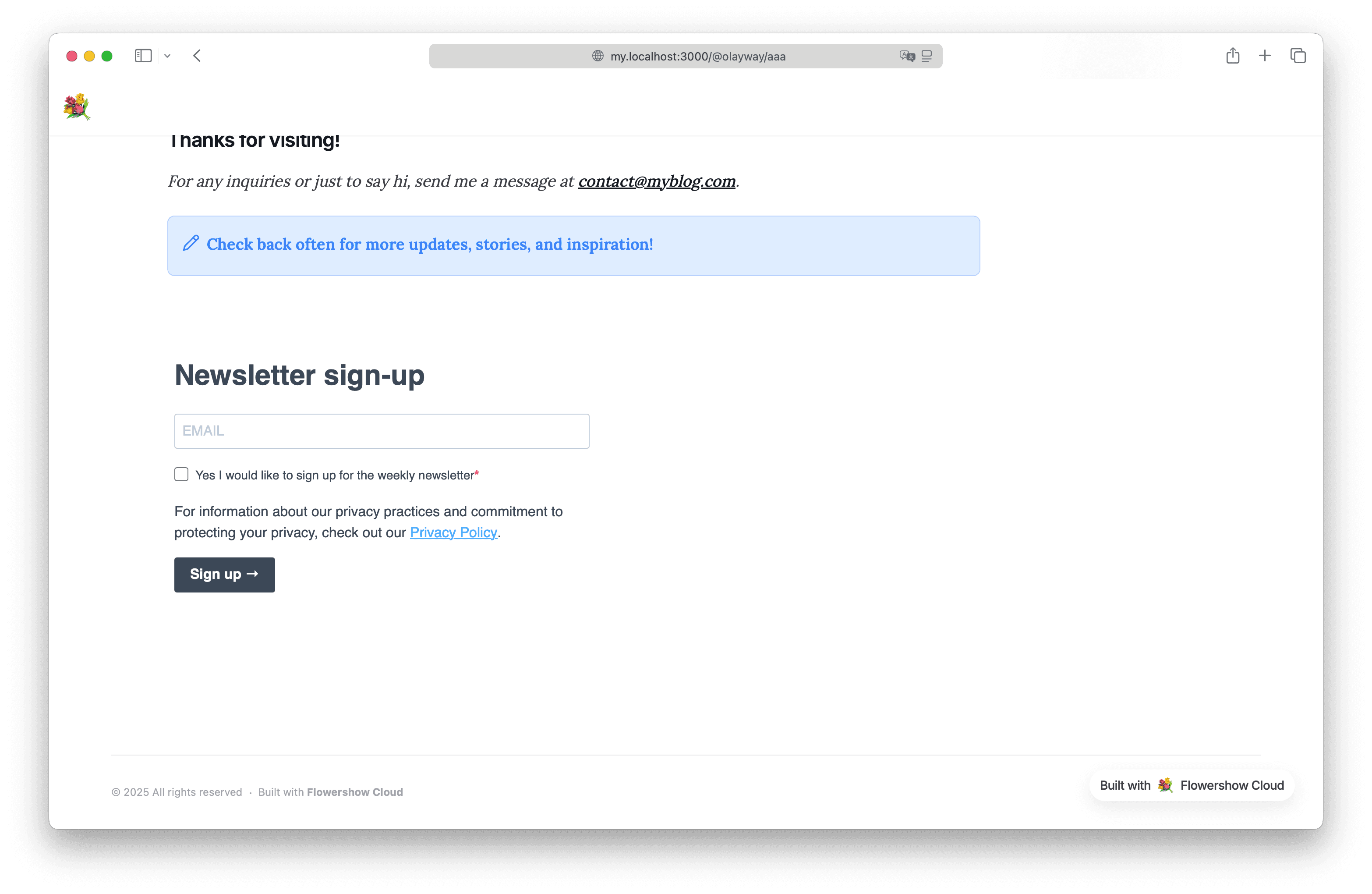
The default Brevo form styling often needs adjustment to look right. The form can appear too centered and may have issues with vertical space - either taking up too much space or being cut off. To fix this:
- Set
width="100%"(as shown in the example above) - Adjust the
heightvalue to match your form's actual content - Consider using negative margins to counteract Brevo's forced padding
Example:
<iframe
  src="https://my.brevo.com/form/embed/1/your-form-id"
  width="100%"
  height="410"
  frameBorder="0"
  scrolling="no"
  style={{
    display: 'block',
    marginLeft: '-45px',
    marginRight: '-45px',
    maxWidth: '100%',
  }}>
</iframe>
Complex Embeds
Many providers (Tally, Mailchimp, TypeForm, etc.) give you an embed that includes a <script> loader alongside the <iframe> or wrapper <div>. Split it into two parts:
- Put the loader
<script>in Custom Head Code (dashboard Site Settings → Analytics → Custom Head Code, or the `head` field inconfig.json). It loads once, site-wide. - Paste the embed markup (the
<iframe>/<div>) into your markdown page.
This loads the script once instead of on every page view, and keeps it working as visitors navigate between pages.
Tally Forms
Once you've created your form in Tally, follow these steps:
- Get the embed code
- Click "Share" in your form editor
- Select "Standard" option under "Embeded Form"
- Click "Get the code"
- Add the Tally loader script once to your Custom Head Code:
{
  "head": "<script defer src=\"https://tally.so/widgets/embed.js\"></script>"
}
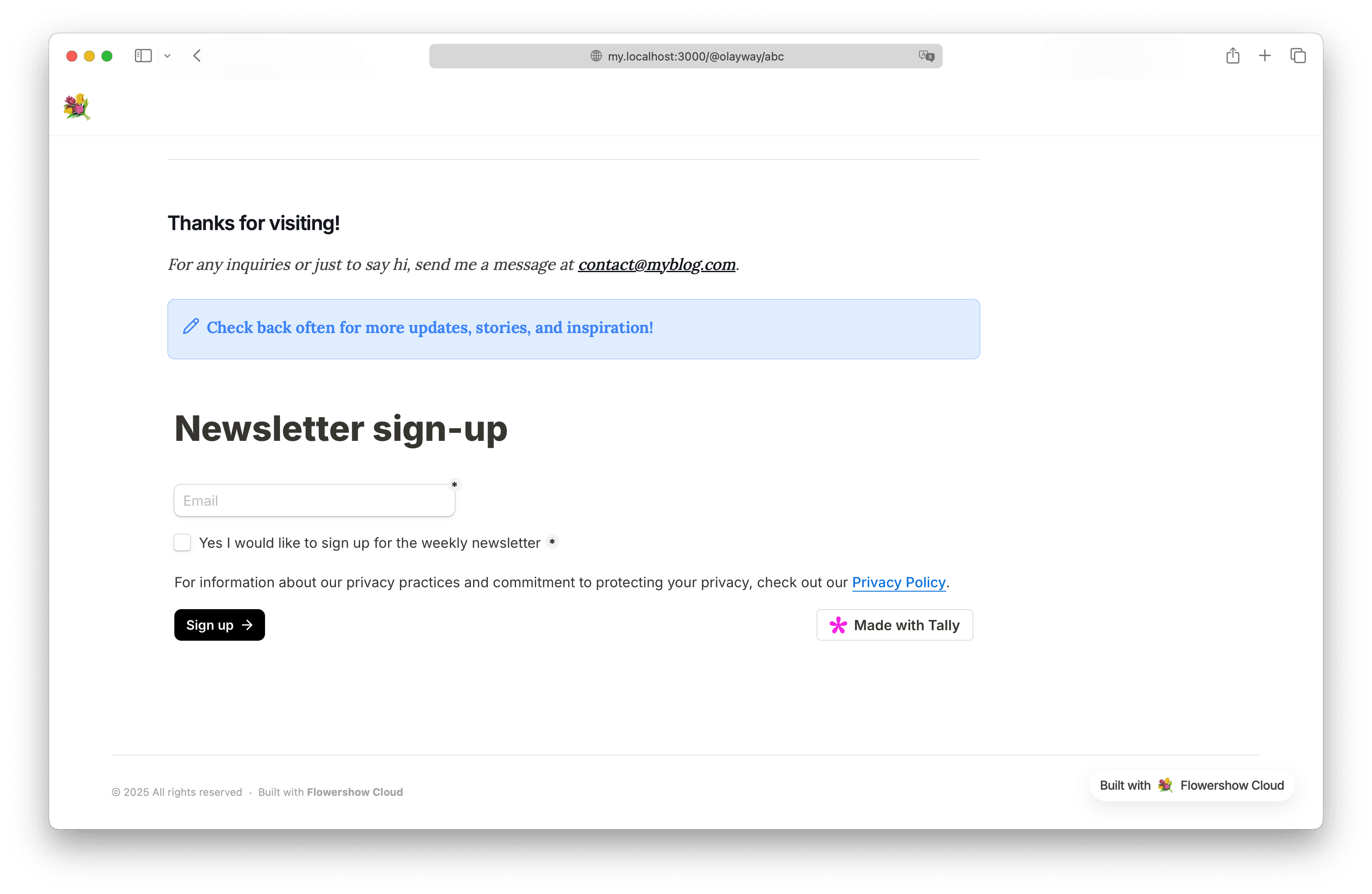
- Paste the iframe into any page where you want the form:
<iframe data-tally-src="https://tally.so/embed/w7gg50?alignLeft=1&hideTitle=1&transparentBackground=1&dynamicHeight=1" loading="lazy" width="100%" height="229" frameborder="0" marginheight="0" marginwidth="0" title="Newsletter sign-up"></iframe>
Mailchimp Forms
After creating your form in Mailchimp, follow these steps:
- Get the embed code
- In the form editor, after you've set it up, click on "Continue"
- Copy the whole Embedded Form Code
- Move the
<script>tag into your Custom Head Code, and paste the remaining markup (the<div id="mc_embed_shell">…, its<link>, and<style>) into your markdown page.
Why JSX Adjustments Are Needed
Flowershow uses React under the hood, which means any HTML in your markdown files is actually processed as JSX (React's template syntax). JSX has slightly different requirements than standard HTML:
- Attributes with multiple words must use camelCase (e.g.,
frameborderbecomesframeBorder) - The
classattribute must be written asclassName - Style attributes must be JavaScript objects with camelCase properties
These adjustments ensure your embedded forms work correctly within React's rendering system. They apply to markup you paste into a page; the loader script you move into Custom Head Code is raw HTML and needs no adjustment.
