Build a blog, portfolio or team page
Turn a folder of Markdown pages into a blog index, a grid of projects or a team page on Flowershow, with no code: a folder name or one line of frontmatter.

Give it this page as Markdown: https://flowershow.app/blog/listing-pages-tutorial.md. Or install the Flowershow skill so it knows how to build listing pages for you: tell your agent "Install the Flowershow skill from https://raw.githubusercontent.com/flowershow/skills/main/SKILL.md" (more options in Skills). The whole site is indexed at https://flowershow.app/llms.txt.
You have a folder of pages (posts, projects, people) and you want a page that lists them: a blog index at /blog, a portfolio at /projects, a team page at /team. On Flowershow the folder does most of the work. A blog/ folder lists itself, and any other folder's README.md becomes its index with one line of frontmatter.
(If you only want a few items inside another page, like your three latest posts on the home page, see Show your latest posts anywhere: it's one block.)
What you'll build
Three index pages, each made from a folder of ordinary Markdown pages:
- A blog index at
/blog: every post, newest first, 20 per page. The blog you're reading is one: flowershow.app/blog.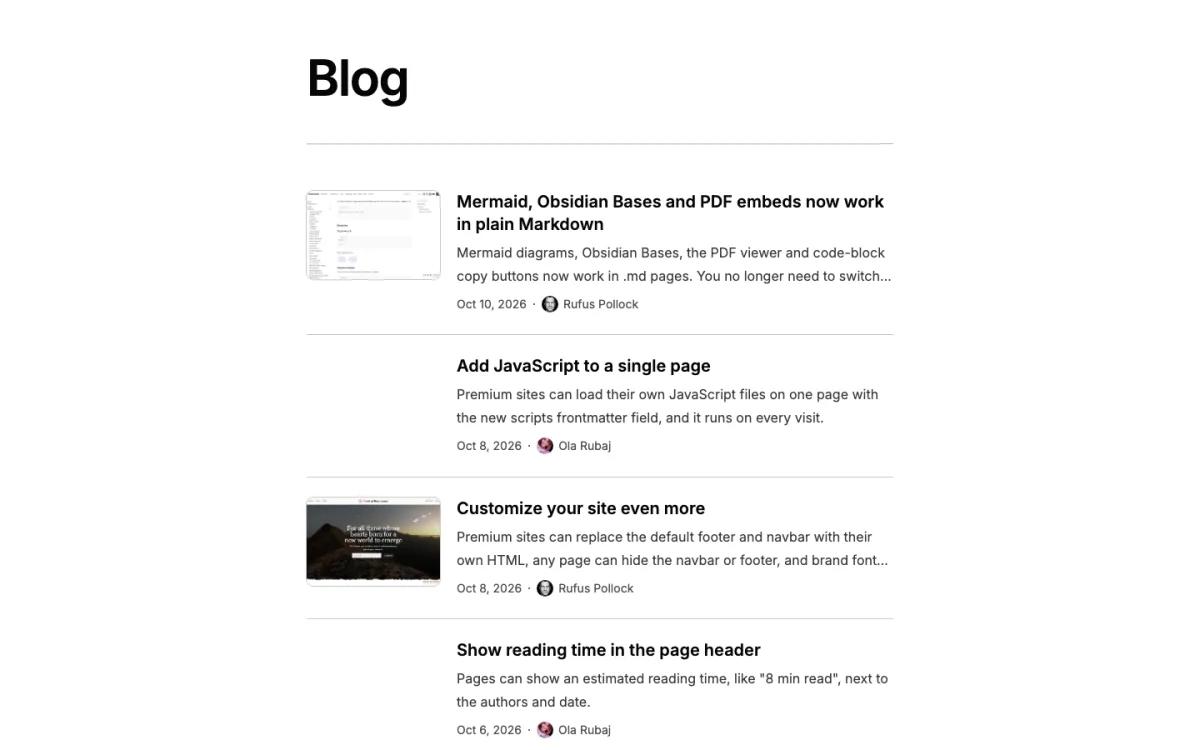
- A project portfolio at
/projects: a grid of cards with cover images.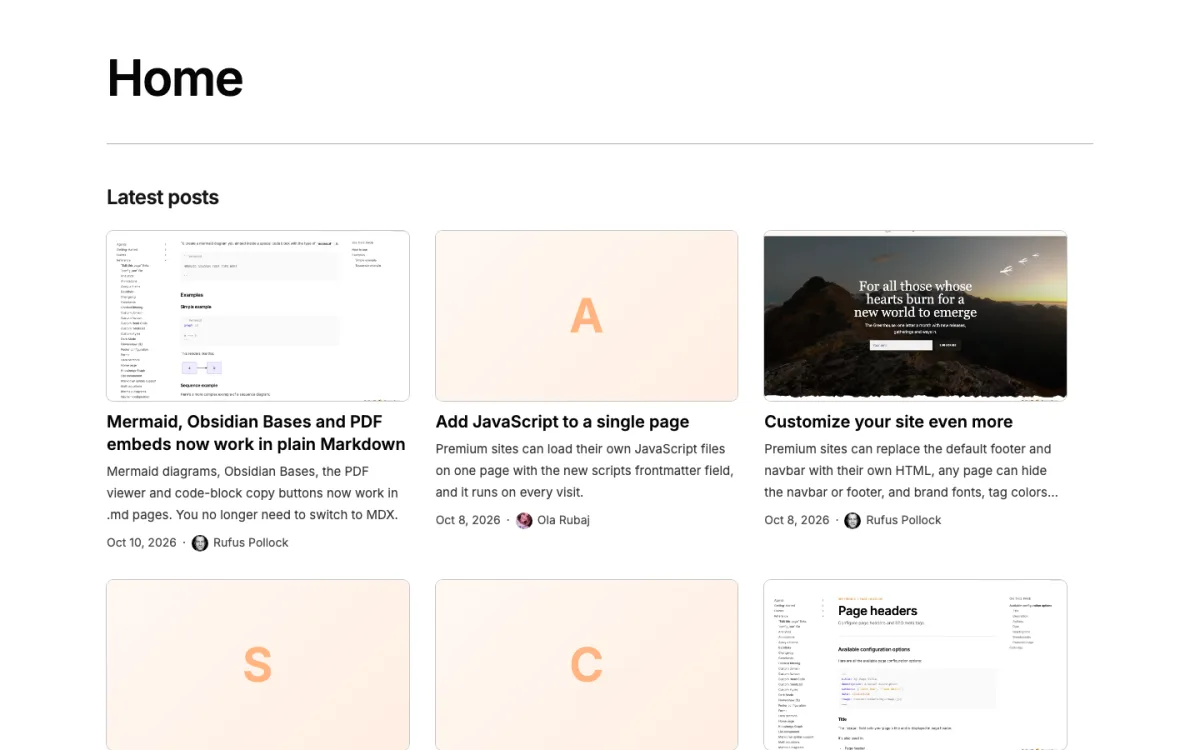
- A team page at
/team: portraits with names, roles and short bios. Here is a live one, listing thepeople/folder of this site:
Rufus Pollock
Founder of Open Knowledge Foundation and Datopian.
Ola Rubaj
Core builder of the app, publishing, tooling and docs.
Abeelha
Flowershow developer, and loves bees.

You'll learn that a folder of pages is all a listing needs, how layout: list turns a folder's README.md into its index, and how view changes the look.
You'll need: a Flowershow site you can add files to and publish. Time: about 15 minutes.
Step 1: Put your posts in a blog/ folder
Create a folder called blog at the top of your site and put your posts in it, one Markdown file each:
blog/
  notes-from-the-garden.md
  first-frost.md
Give each post a title, a date and, if you like, a description and an image. For example, blog/notes-from-the-garden.md:
---
title: Notes from the garden
description: What worked this year, and what the slugs ate.
date: 2026-10-11
image: "[[garden.jpg]]"
---

The tomatoes did better than expected...
Publish, then open /blog on your site. You should see an index of your posts, newest first, titled "Blog", even though you haven't written an index page. A folder named blog or posts (at any depth) lists itself, unless its README.md decides for itself (for example, it has a layout, its own list or Bases block, or list: false).
Step 2: Add an intro above the posts
Create blog/README.md with a title and a sentence or two, and nothing else:
---
title: Blog
---

Notes on compilers and gardening, roughly weekly.
Publish and reload /blog. You should see your intro, then the same list of posts under it.
Step 3: Make a project portfolio with layout: list
Folders with other names don't list themselves; you tell them to. Create a projects/ folder with one page per project, for example projects/seed-library.md:
---
title: Seed library
description: A lending library for heritage vegetable seeds.
image: "[[seed-library.jpg]]"
---
A project can also be a folder of its own (projects/seed-library/README.md, with its images beside it); it's listed as one item.
Then create projects/README.md:
---
title: Projects
layout: list
list:
  view: grid
---

Things I'm building, or have built.
layout: list makes this page the index of its own folder. view: grid under list: turns the rows into cards. Publish and open /projects. You should see a grid of cards (pages without a date are sorted by title): three across on a wide screen, two on a tablet, one on a phone. If some projects have an image and others don't, the others get a tile tinted with your accent colour, so the rows stay lined up.
Step 4: Make a team page with view: people
Create a team/ folder with one page per person (team/ada.md, team/grace.md). Each page has the person's photo, role and a short bio, for example team/ada.md:
---
title: Ada Lovelace
avatar: "[[ada.jpg]]"
role: Analyst
bio: Wrote the first published program, for a machine that was never built.
---
Then create team/README.md:
---
title: Team
layout: list
list:
  view: people
---
Publish and open /team. You should see square portraits with each person's name, role and bio, sorted by name. Someone without a photo gets their initials.
That's the whole pattern: a folder of pages, plus a README.md with layout: list and, if you want, a view.
Troubleshooting
- My
blog/README.mdalready links to every post, and now there's a second list under it. Addlist: falseto its frontmatter. - The page shows "Nothing here yet." The folder has nothing to list. Pages with
draft: trueorpublish: falseare left out, and so is the folder's ownREADME.md. - A "List block has problems" card, or a message like
"limit" shows only the first 5 items and hides the rest. A key is wrong; the message says what to use. On alayout: listpage, usepageSize(items per page), notlimit. - My team page is one
team.mdwith a table, and it can't be listed. A listing shows one page per item: give each person their own page. - The posts are in the wrong order. Lists sort by each page's
date(or, if it has none,pubDate,published,publishDate,created, or aYYYY-MM-DDat the start of the file name). Undated pages go last.
Next steps
Each of these is one or two lines under list:; the Listing pages reference has every key and default.
- Projects in alphabetical order, without dates:
sort: titleandfields: { date: none }. - People in your own order: give each person
order: 1,order: 2and so on, and addsort: order(as the live team list above does). - An archive, one line per post under a heading per year: an
archive.mdwithlayout: listandlist: { from: blog, view: compact }. - A featured post as a large hero above the rest:
featured: 1. - Headings per group:
group: year, orgroup: statusfor projects. - What each card shows:
fields, e.g.eyebrow: categoryormeta: [status]. - Styling: CSS custom properties such as
--list-card-radiusin yourcustom.css; see Styling. - A few items inside another page: Show your latest posts anywhere.
- Already have a Flowershow site, or use
<List />? What changed and how to switch: the listing pages changelog entry and Coming from the List component.