Page headers
Configure page headers and SEO meta tags.
Pages in a blog/ or posts/ folder use the post version of this header (a larger title, a byline with author photos, the image as a cover, and previous/next and "Read more" at the end). See Post pages.
Available configuration options
Here are all the available page configuration options:
---
title: My Page Title
description: A brief description
authors: ["John Doe", "Jane Smith"]
date: 2024-03-06
image: content/assets/my-image.jpg
---
Title
The title field sets your page's title and is displayed in page header.
It's also used in:
- Page header
- Sidebar navigation
- Browser tab title
- Search engine result title
- Social media preview title
Instead of using title frontmatter field, you can just set top level markdown # Page title. If neither title frontmatter field nor level 1 markdown heading is used, title will default to the filename.
Description
The description field provides a brief summary of your page content and is displayed in page header.
It's also used in:
- Search engine result snippet
- Social media preview description
If a page has no description, Flowershow uses the opening sentence of the page as a short subtitle-style description (up to 140 characters) for search results and previews. It isn't shown in the page header, since the paragraph is right there.
Authors
The authors field lets you specify one or more authors for the page. Authors are displayed in page header.
authors: ["John Doe"]           # Single author
authors: ["John", "Jane"]       # Multiple authors
See Page authors for details on creating dedicated author pages with avatars.
Date
The date field sets the publication date for your page and is displayed in page header.
date: 2024-03-06 # YYYY-MM-DD format
Reading time
Show an estimated reading time (e.g. "8 min read") in the page header, next to the authors and date. It's calculated from the page's word count at 200 words per minute, rounded up.
Reading time is off by default. Turn it on for the whole site under Settings → Content → Show Reading Time in the dashboard, or in config.json:
"showReadingTime": true
Override the site-wide setting on a single page with frontmatter:
---
title: A long guide
showReadingTime: true # or false to hide it on this page
---
Breadcrumbs
Show a breadcrumb trail above the page title, e.g. Guides › Advanced › Tuning. The trail follows your site's folder structure, the same one the sidebar uses. Folders link to their index.md or README.md page if they have one. The last crumb is the current page.
Breadcrumbs are on by default. Turn them off for the whole site under Settings → Content → Show Breadcrumbs in the dashboard, or in config.json:
"showBreadcrumbs": false
Breadcrumbs appear above the title on every screen size. Pages in the root folder have nothing above them, so they show no breadcrumbs.
Override the site-wide setting on a single page with frontmatter:
---
title: Install
showBreadcrumbs: false # or true to show them when the site has them off
---
Group pages on a flat site with section
If your pages sit side by side in one folder, the folder tree can't express grouping. Set section in a page's frontmatter to replace the folder trail with your own label:
---
title: Guide
section: Use it
---
This page's breadcrumbs read Use it › Guide. The section label isn't a link.
Style the trail with the .page-header-breadcrumbs class. See the theme class reference for the other breadcrumb classes.
Featured image
The image field sets a featured image for your page.
It's also is used in:
- Social media preview cards1
When someone shares your page on platforms like Twitter, LinkedIn, or Facebook, the featured image will be used to create a rich preview card, making your content stand out in social feeds.
For example:
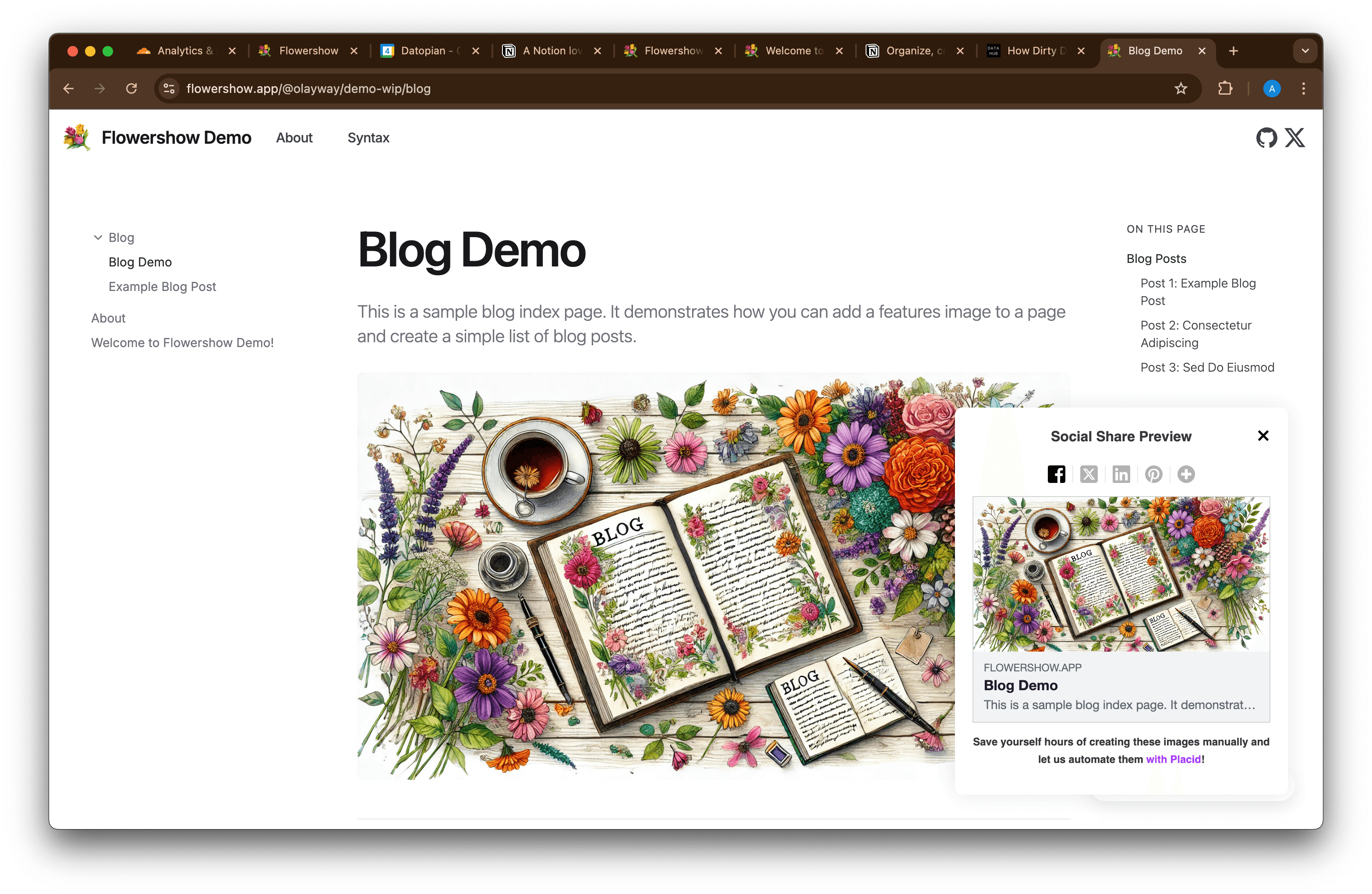
You can specify your featured image in two ways:
- Repository Path: Use a relative or absolute path to an image in your repository
- External URL: Link to an image hosted elsewhere on the web
Adding a featured image
Add the image field to your page's frontmatter:
---
title: My Page
image: content/assets/my-image.jpg # relative path
---
Or use an absolute path from your repository root:
---
title: My Page
image: /content/assets/my-image.jpg # absolute path
---
You can also use external URLs:
---
title: My Page
image: https://example.com/my-image.jpg # external URL
---
Using images from your repository gives you more control and ensures they're always available. External URLs are convenient but depend on the external source staying available.
Best practices
- Use descriptive titles and descriptions for better SEO
- Include featured images when possible for better social sharing
- Recommended image dimensions: 1200x630 pixels (1.91:1 ratio) for optimal social media sharing
- Keep image file sizes reasonable (under 1MB) for better performance
- Use high-quality, relevant images with good contrast; avoid text in images as social platforms may add their own
- Respect image copyright: use your own images, properly licensed photos, or images from free stock photo sites
- Use ISO date format (YYYY-MM-DD) for dates
Testing featured images
After adding a featured image:
- Wait for your site to sync
- View your page to see the featured image
- Test how it looks when shared using social media preview tools or by sharing the page on a test account
Footnotes
-
Custom social share images are only available on premium sites. ↩
