SEO and social media metadata
Configure SEO titles, descriptions, and social media images for better search and sharing.
Configure site-wide SEO defaults from the Flowershow dashboard under Site Settings → General, or using config.json if you prefer to version-control your settings or manage them via an automated workflow.
Site name
Your site's name is set from Settings → General → Name.
This value is appended as a suffix to every page title and appears in browser tabs, search results, social shares, and bookmarks. It's also shown in your site's navbar and footer. It doesn't affect how the title displays in the page body itself. Keep the combined title under 60 characters for best results.
Page title: "My Guide"
Site name: "My Site"
Final SEO title: "My Guide - My Site"
When a page's title is the same as your site name — for example, your home page — the name isn't repeated. The SEO title is just "My Site" rather than "My Site - My Site".
Default description
Go to Settings → General → Description and enter a fallback description for your site.
This is used in search results and social previews when a page has no description set in its frontmatter. Unlike titles, descriptions are not combined — the page value replaces the site default entirely.
Aim for 150–160 characters for optimal display in search results.
Social preview cards
Every page gets a generated preview card for social sharing, showing the page title, description and your site name (with your logo, if you have one).
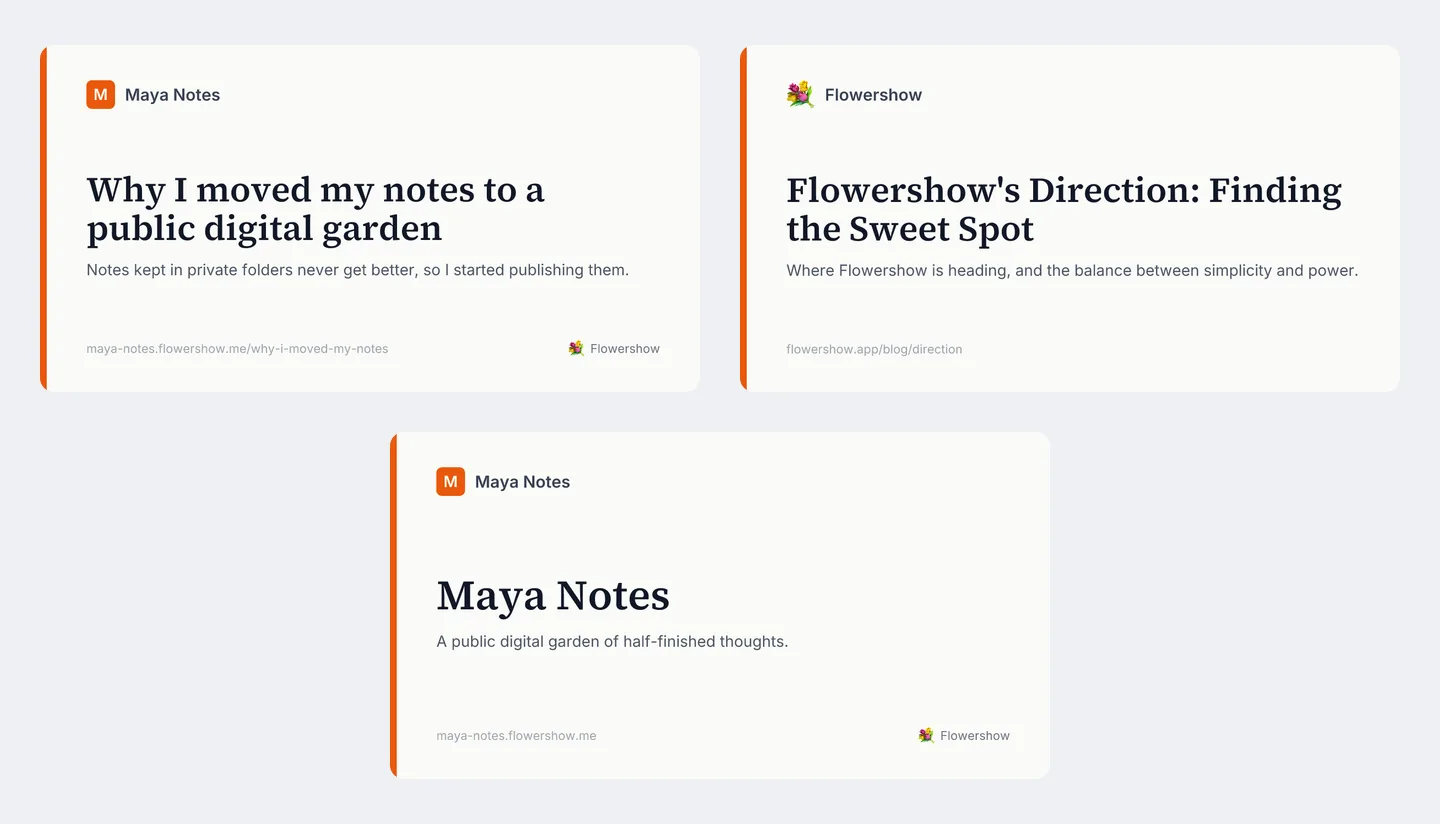
- Free sites: every page gets a generated preview card with its title, description and site name, plus a small Flowershow mark.
- Premium sites: the same cards without the mark. If you set an
image(page or site), that image is used instead. - Password-protected sites: the card and the preview's title and description show only the site name and tagline, never page titles or descriptions.
Default social image
Go to Settings → General → Social Image and upload your default social sharing image.
Social media image configuration is a premium feature.
Free sites: a generated preview card is used for social sharing, regardless of your image settings (see Social preview cards).
Premium sites: your custom images are used. If you don't set one, the generated preview card is used.
Recommended size: 1200×630 pixels (JPG or PNG, under 1MB).
To use a file path or external URL as your social image, use config.json — the dashboard social image field accepts image uploads only.
Per-page configuration
Site-wide defaults can be overridden on individual pages using frontmatter fields.
Title
Page titles can be set using three methods (in order of precedence):
- Frontmatter
titlefield (highest precedence) - First level 1 heading (
# Heading) - Filename (fallback)
Read more about Page titles.
Description
Set description in frontmatter to override the site-wide default for that page:
---
description: Learn how to create, manage, and deploy Docker containers.
---
If a page has no description, Flowershow uses the opening sentence of the page as a short subtitle-style description (up to 140 characters) for search results and previews. It isn't shown in the page header, since the paragraph is right there.
Image
Set image in frontmatter to use a custom social image for that page:
---
image: /assets/docker-guide-social.jpg
---
Using config.json
If you want to version-control your configuration, or have your editor's AI agent manage settings without touching the dashboard, you can define everything in config.json instead. Values set in config.json take precedence over dashboard settings.
{
  "siteName": "My Site Name",
  "description": "Default site description.",
  "image": "/assets/default-social.jpg"
}
siteName: Your site's name, appended as a suffix to every page title. Overrides the name set in the dashboard; defaults to your project name.description: Fallback description for pages with no frontmatter descriptionimage: Path to the default social image (relative to site root) or an external URL
title is still accepted as a deprecated alias for siteName. Existing configs keep working, but new sites should use siteName.
Complete example
Frontmatter:
---
title: Complete Guide to Docker Containers
description: Learn how to create, manage, and deploy Docker containers with practical examples and best practices.
image: /assets/docker-guide-social.jpg
---
config.json:
{
  "siteName": "DevTutorials",
  "description": "Professional development tutorials for modern developers.",
  "image": "/assets/devtutorials-default.jpg"
}
Result:
- SEO title: "Complete Guide to Docker Containers - DevTutorials"
- Description: "Learn how to create, manage, and deploy Docker containers with practical examples and best practices."
- Social image:
/assets/docker-guide-social.jpg
