Post pages
Every post in your blog gets a reading column, a header with the author and date, the cover image, and links to the previous, next and related posts. Nothing to configure.
Put a post in your blog/ folder and it looks like a post: a centred reading column, a big title, your description underneath, the author with their photo, the date, your cover image, and at the end the post's tags, links to the previous and next posts, and three more posts to read.
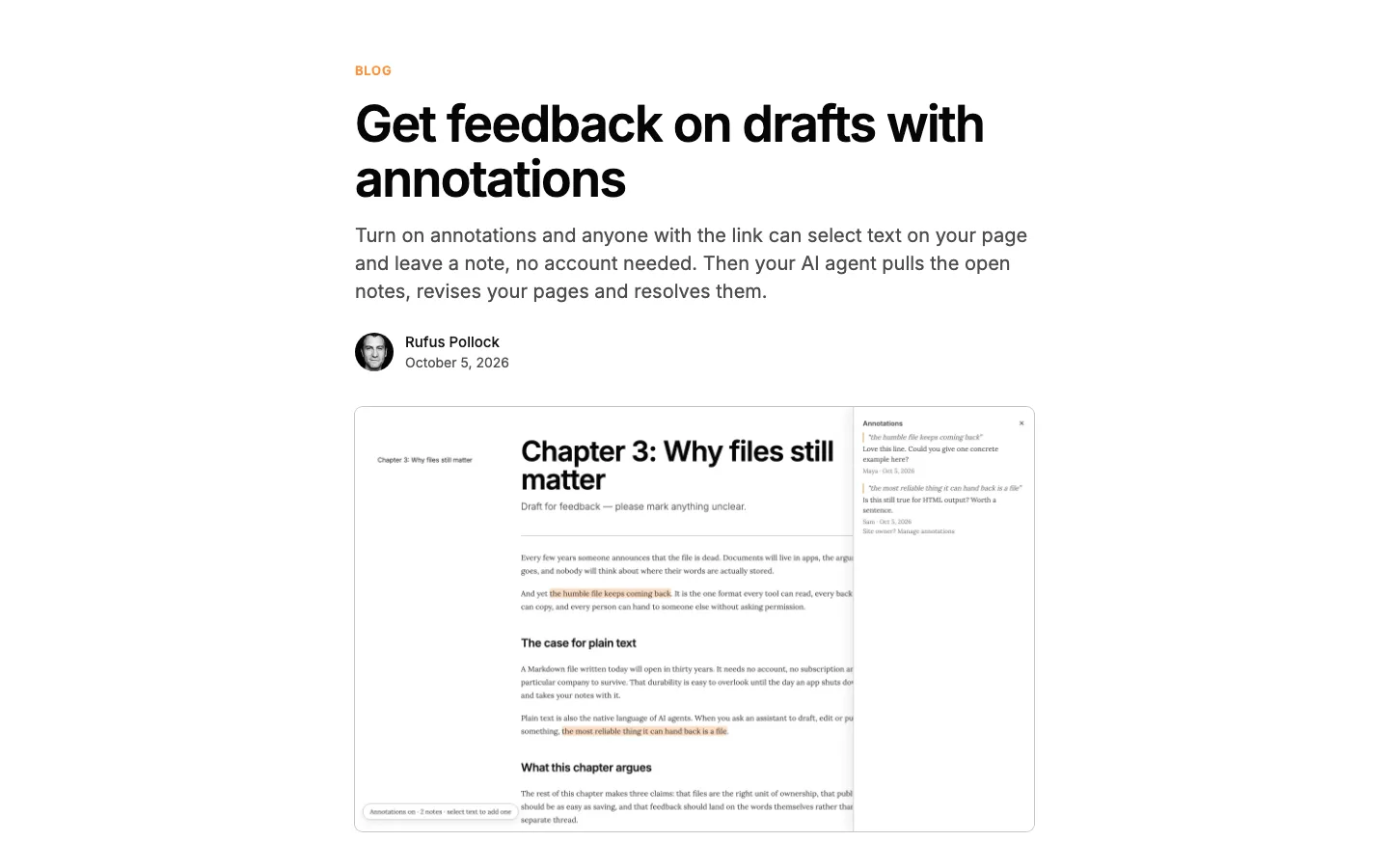
It works the same for .md and .mdx posts, and there is nothing to set up.
Which pages are posts
A page gets the post layout when it has no layout of its own and it lives in:
- a folder named
blogorposts, at any depth (/blog,/notes/posts), including subfolders such asblog/2026/, and it has a date (date,publishDate,pubDate,published, or a2026-10-11-file name prefix). Undated notes in such a folder keep the normal layout. See A blog with nothing to write; - or a folder whose
README.md/index.md(or folder note) haslayout: listand looks like a dated feed: itslist:settings sort by date explicitly (sort: date,sort: -date), or it haspostLayout: true, or at least 80% of the pages it lists have a date. A barelayout: listover recipes, projects or other undated pages, a catalogue sorted by title ororder, and a team page (view: people) are not feeds, so their pages keep the normal layout.
A folder inside a blog that has settings of its own decides for itself: blog/projects/README.md with layout: list and sort: title keeps its pages as they are, and so does a folder index with postLayout: false, list: false or another layout. A subfolder with only a prose README (or none) stays part of the blog.
The listing page itself (blog/README.md, or the generated /blog) is never a post. A page anywhere else can ask for the post layout with layout: post; it gets the header and tags, and previous/next and "Read more" only if it is inside a blog.
A date on its own does not make a page a post, so your docs or notes pages keep their normal layout.
What's on a post page
From top to bottom, each from the post's frontmatter:
| What | From | Notes |
|---|---|---|
| Section label | the folder | The breadcrumb trail above the title, e.g. BLOG, linking back to the index. Turn breadcrumbs off with showBreadcrumbs: false. |
| Title | title | Or the first # heading, or the file name. |
| Subtitle | description | Only the description you write; the automatic first sentence used for search results isn't shown. |
| Byline | authors, date | Author names with their photos (see Page authors), then the date in your site's locale, and the reading time if it's on (Reading time). |
| Cover image | image | Shown under the byline, inside the reading column. |
| Tags | tags | As pills at the end of the post. |
| Previous / next | the folder | The posts before and after this one in the blog's order (for the default newest-first order, "Previous" is the older post). |
| Read more | the folder | Three posts from the same blog as cards: posts sharing a tag with this one first, then the most recent. |
---
title: Growing tomatoes on a balcony
description: What worked, what didn't, and what I'd do differently next year.
date: 2026-09-18
authors:
  - ada
image: "[[tomatoes.jpg]]"
imageAlt: Three tomato plants in pots on a sunny balcony
imageCaption: The balcony in August.
tags:
  - garden
---

The post itself...
The cover image
The image you set (it is also your page's social preview card) is shown as a cover under the byline. It keeps its own shape and is never cropped or enlarged: at most the reading column wide, centred. Add imageAlt for screen readers and imageCaption for a caption under it.
The cover is left out when:
- the image is in your site and is narrower than 600px or not clearly landscape (less than 1.2 times as wide as it is tall), such as a logo, an icon or a portrait. An image from another website, whose size Flowershow doesn't know, is shown at its own size and at most 24rem tall;
- the post already shows the same image in its text (as
![[...]],or<img>, with or without%20in the name), so it never appears twice; - the post uses a full-width hero section (
showHero: true), which already shows it; - you set
showImage: false, for example whenimageis a logo or a card made for social media. The image stays your social preview card.
Only image files are used: a link to a web page in image (for example a screenshot service URL) isn't shown as a cover.
Previous, next and read more
Both follow the blog's own listing: the same folder, the same order and the same where filter as its index page (the list: settings of a layout: list page). Drafts (draft: true) are never linked. A post that is filtered out of the index still gets "Read more" cards, but no previous or next. "Same tag" counts both frontmatter tags and inline #tags.
In a very large blog (more than 5,000 pages) posts have no previous/next or "Read more", to keep pages fast.
If your blog's README lists posts its own way (a ```blog block or <List /> with a different sort), previous and next use the default newest-first order.
Turning it off
- One page: give it any other
layout, such aslayout: default. - A whole folder: add
postLayout: falseto the folder'sREADME.md/index.md(or folder note). Its pages (and its subfolders' pages) keep the normal layout, and the folder's listing is unchanged. - Opt a folder in:
postLayout: trueon alayout: listfolder whose pages are not mostly dated. - A blog folder entirely:
list: falseon its README turns off the automatic listing and the post layout.
Styling
The header keeps the usual page header classes (.page-header-title, .page-header-description, .page-header-metadata-container, .page-header-author-avatar, .page-header-date, .tag-pill), so themes that style page headers style posts too. The post adds its own hooks, all listed in the theme class reference: .post-page on the <article>, .post-header, .post-eyebrow, .post-dek, .post-byline, .post-hero, .post-footer, .post-nav and .post-read-more (whose cards are the listing grid cards).
The default styles are easy to override, and these CSS variables change the most common things:
| Variable | Default | What it changes |
|---|---|---|
--post-max-width | 44rem (same as --list-max-width) | The reading column |
--post-wide-max-width | 64rem | The width of "Read more" |
--post-body-size | 1.125rem | Body text size |
--post-hero-max-height | 24rem | The tallest a cover from another website can be |
--post-hero-radius | 0 (same as --list-card-radius) | Cover image corners |
--post-avatar-size | 40px | Byline photos |
--post-meta-color | muted text | Date, reading time, caption, "Previous"/"Next" |
--post-eyebrow-color | your accent colour | The section label |
--post-rule-color | a light hairline | The line above "Read more", previous/next borders |
:root {
  --post-max-width: 40rem;
  --post-hero-max-height: 20rem;
}
The cover image (when its size is known) is downloaded at the reading column's width; if you make --post-max-width much wider, covers may look slightly soft.
